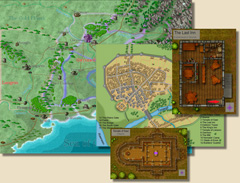

In May we'll take a look at something a little different, not a new style or a new set of symbols, but how to connect all your different maps together to create a virtual atlas.
We at Profantasy used the option to link maps to each other in a number of products, namely the Forgotten Realms Interactive AtlasTM, the World War II Atlas, and the Source Maps series of products. We'll show you how to setup some of the special linking that has been used in those.
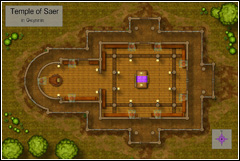
Besides the detailed mapping guide, the May issue contains a number of tools for linking maps (menus, macros, drawing tools, etc.) and a mini-collection of linked maps consisting of last months's example city and three new maps (1 overland, 2 floorplans).
The technique pack Creating An Interactive Atlas includes
CC3 user Dalton Spence has posted some excellent additional material for this Annual issue on the Campaign Cartographer mailing list. Here are his ideas and suggestions:
1. Since overland maps seldom use multiple levels, the ca17_atlas.mnu options should be inserted into the menu files used to make floor and deck plans (ie. dungeon.mnu, castle.mnu, cosmog.mnu, etc.) rather than the "FCW32.mnu".
2. Not all multilevel structures will have exactly five levels. Create a custom menu file for a particular structure (mapname.mnu) with the proper number of levels in the map folder and use the "OnOpenMacro" note starting with "MENUDM $mapname.mnu" to load it onto each component map. Note that if you are not planning to create a 3d overview (because you don't have "Perspective Pro"), you can remove that icon from the custom menu as well.
3. Don't like the existing menu icons and tooltips? Change the tooltips in the custom menu and use "Paint" to create new bitmap icons from the old. For example, I wanted to have Basement and Ground levels. Here are my customized menu entries (note my 2 new bitmaps):
#619,#Bitmaps\Icons\ca17_info.bmp:[Atlas Information]|INFO;
#621,#Bitmaps\Icons\ca17_map2.bmp:[2D Map]|SURROUND;
#622,#Bitmaps\Icons\ca17_floorB.bmp:[Basement]|LEVEL1;
#623,#Bitmaps\Icons\ca17_floorG.bmp:[Ground Floor]|LEVEL2;
#624,#Bitmaps\Icons\ca17_floor2.bmp:[2nd Floor]|LEVEL3;
#625,#Bitmaps\Icons\ca17_floor3.bmp:[Attic Level]|LEVEL4;
To get the additional bitmaps, download this zip-file and extract it over your CC3 installation.
4. More than five levels? The AUTOLINK macro doesn't limit the number of links generated (be careful that the number of levels doesn't exceed the width of the map in feet), so you could quickly run out of icons and menu positions. My solution? Use a context menu as the right click option of the Info icon as follows;
#619,#Bitmaps\Icons\ca17_info.bmp:[Atlas Information]{|CMENU $mapname.mnc;}|INFO;
with the context menu file in the same folder looking something like this;
Atlas Information:|INFO;
2D Map:|SURROUND;
Basement:|GV floor 1;GOFLOOR;
Ground Floor:|GV floor 2;GOFLOOR;
Second Floor:|GV floor 3;GOFLOOR;
Attic Level:|GV floor 4;GOFLOOR;
Note that by using GOFLOOR macro you can open *any* map level a link has been generated for (if it exists).
5. I was thinking of a way to avoid generating a string of hotspots, one for each map. Create one hotspot which stores the map name prefix in a variable, then use that prefix to build the load commands in the macros. This way you don't have to specify a maximum number of levels. Replace the following macros.
MACRO AUTOLINK
GL fname ^DMap name:
GOLAYER HIDDENLINKS
COLOR 7
TSPECF Arial
TSPECH 1
GL comm ~GV fnam
APND comm eF
APND comm;
APND comm $
APND comm fname
APND comm;
ACTIONM comm
0,0;1,1
GOLAYER HYPERLINKS
COLOR 0
ENDM
MACRO GOFLOOR
RDOFF
SHOW HIDDEN LINKS
RDON
ACT 0.5,0.5
APND fnameF floor
APND fnameF .fcw
LOADM fnameF
ENDM
MACRO SURROUND
GV floor _surroundings
GOFLOOR
ENDM
MACRO 3DVIEW
GV floor 3d
GOFLOOR
ENDM
To make copying the macros and menu entries easier, you can get them collected in this text file.
If you want to get in contact with CC3 users exchanging ideas like these, join the Campaign Cartographer community forum or our mailing list.